Official documentation

ESP32‑S3 Dev Board

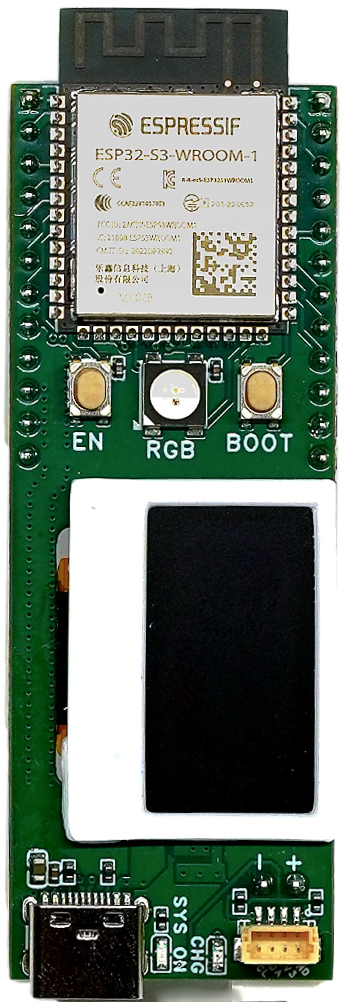
A Wi‑Fi + Bluetooth LE development board with a built‑in 0.96″ OLED display, USB‑C, LiPo battery charging, and a Qwiic connector — running a live weather clock straight out of the box.

ESP32-S3-WROOM-1 · 8 MB flash · 76.2 × 25.4 mm

J4 J5 12:47 78°F · SUNNY RGB QWIIC U1 ESP32-S3-WROOM-1 76.2 mm 25.4 mm

Getting started

From the box to your first upload

The board arrives ready to use — no soldering, no drivers. Steps 1–2 get the built-in demo online; steps 3–4 set you up to write your own code.

  1. Plug it in

    Connect the board to any USB‑C charger or computer port. It powers up and starts the built-in Weather Clock on the OLED display.

  2. Put it on your Wi‑Fi

    On first boot the board opens its own setup hotspot. Join it from your phone, and a setup page appears — pick your home network and enter its password. The board restarts and shows your local time and weather, with the RGB LED tinted by the temperature outside.

    The board uses 2.4 GHz Wi‑Fi. If your router broadcasts separate 2.4 GHz and 5 GHz names, choose the 2.4 GHz one.

  3. Set up the Arduino IDE

    Install the free Arduino IDE, then open File → Preferences and paste this into Additional boards manager URLs:

    https://espressif.github.io/arduino-esp32/package_esp32_index.json

    Open Tools → Board → Boards Manager, search for esp32, and install esp32 by Espressif Systems. Then match these settings under Tools:

    BoardESP32S3 Dev Module
    USB CDC On BootEnabled
    Flash Size8MB (64Mb)
    Partition Scheme8M with spiffs

    No driver install is needed — the board uses the ESP32‑S3’s native USB, which Windows 10/11, macOS, and Linux recognize out of the box.

  4. Upload your first sketch

    Select the board’s port under Tools → Port, paste this in, and click Upload. The onboard LED cycles red, green, blue:

    #define RGB_PIN 48   // onboard RGB LED
    
    void setup() {}
    
    void loop() {
      neopixelWrite(RGB_PIN, 40, 0, 0);  delay(400);  // red
      neopixelWrite(RGB_PIN, 0, 40, 0);  delay(400);  // green
      neopixelWrite(RGB_PIN, 0, 0, 40);  delay(400);  // blue
    }

    If the port doesn’t appear or the upload won’t start: use a data-capable USB‑C cable, or hold the BOOT button while plugging the board in, then try again.

  5. Keep going

    Grab the pinout diagram and user guide, then build something from the example projects below — including the full source of the Weather Clock your board shipped with.

At a glance

What’s on the board

Module
ESP32‑S3‑WROOM‑1‑N8 · dual‑core @ 240 MHz
Wireless
Wi‑Fi 4 (2.4 GHz) + Bluetooth 5 LE
Memory
8 MB flash · 512 KB SRAM
Display
0.96″ 128×64 OLED (SSD1306, SPI)
Power
USB‑C input · LiPo charging + battery protection
Expansion
Qwiic / STEMMA QT (I²C) · 2×12 header pins
Status LED
Addressable RGB (SK6812)
Size
76.2 × 25.4 mm · breadboard friendly

Downloads

Documents & references

DocumentWhat it coversFile
Schematic Full board schematic schematic.pdf
User guide Setup, features & troubleshooting user-guide.pdf
Pinout diagram Printable pin reference pinout.pdf
ESP32‑S3‑WROOM‑1 datasheet Official module specifications from Espressif espressif.com ↗
Demo firmware source The Weather Clock sketch your board ships with GitHub ↗

Missing something? Email us and we’ll send it over.

Example projects

Three ways to start building

Weather Clock

The firmware your board ships with. It fetches your local forecast over Wi‑Fi and draws a clock and conditions on the OLED — a full tour of Wi‑Fi, HTTP, JSON, and the display in one sketch.

View source ↗

Qwiic sensor in 5 minutes

Plug a Qwiic temperature & humidity sensor into the side connector — no soldering — and chart live readings on the screen.

View source ↗

Smart home with ESP RainMaker

Pair the board with the free ESP RainMaker phone app and control the RGB LED from anywhere — a first step into connected devices.

View source ↗

Support

Stuck? We’ll help.

Talk to us

Tell us what you tried and what happened — a photo of your setup helps. We read every message.

support@hwdesigns.us

My computer doesn’t see the board

Use a data-capable USB‑C cable — many bundled cables are charge-only. No drivers are needed on Windows 10/11, macOS, or Linux. If the port still doesn’t appear, hold the BOOT button while plugging the board in, then release it and check again.

Which battery does it take?

A single-cell 3.7 V LiPo. It charges automatically from USB‑C, and on-board protection guards against over-discharge. Double-check your battery’s connector polarity against the user guide before plugging it in.

Can I use something other than Arduino?

Yes — it’s a standard ESP32‑S3, so ESP‑IDF, MicroPython, and CircuitPython all work. This guide covers Arduino because it’s the fastest path to a first upload.